Giving Feedback to Sales Savant
The shortest path to a Sales Savant that fits your team is telling us what to change. You don't have to guess whether something is a scorecard problem, a prompt problem, or a product problem — describe it in your own words and we'll figure out the routing.
This guide covers where the feedback affordances live and what happens after you submit.
Where to give feedback
There are two entry points today, plus more on per-call surfaces.
The floating "Feedback" button
A chat-bubble icon sits at the bottom-right of every dashboard page, just above the AI assistant button. Click it from anywhere in the app to open the feedback form — no need to track down the right settings page.
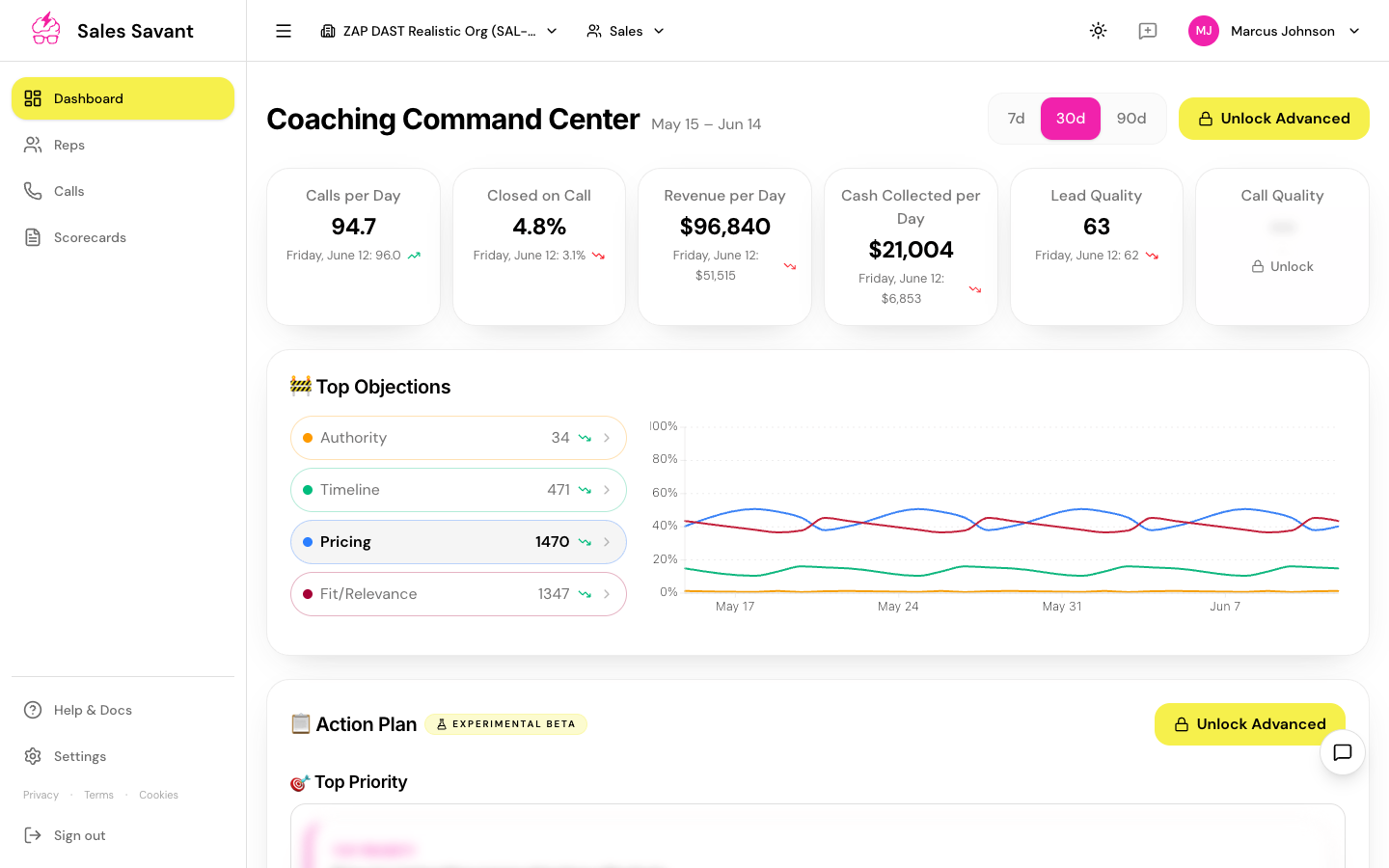
Use this when the feedback is general ("the AI tone is too corporate", "we'd love to see X in the dashboard") or when you'd rather not stop what you're doing to navigate elsewhere.
"Tune this scorecard" on the scorecard editor
When you're looking at a specific scorecard, the header carries a Tune this scorecard button. Feedback you give here is automatically attached to that scorecard, so we know exactly which one your comment is about.
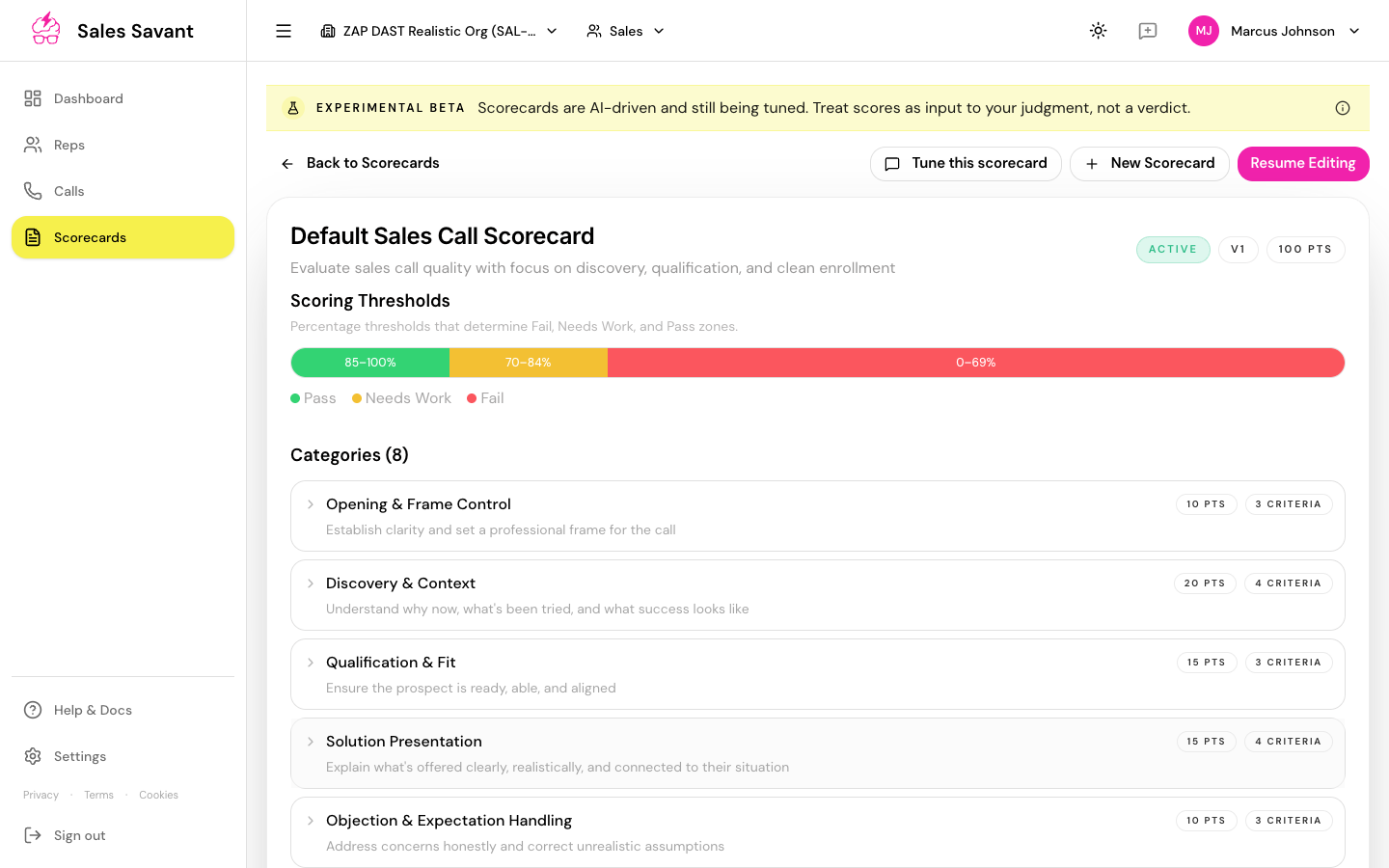
Use this when your feedback is specifically about how a particular scorecard scores — for example, "the Discovery criterion gives full credit even when the rep skips 'why now'."
What the form asks for
The feedback form has two fields: a description of what should change, and a routing chip that tells us roughly what the feedback is about.
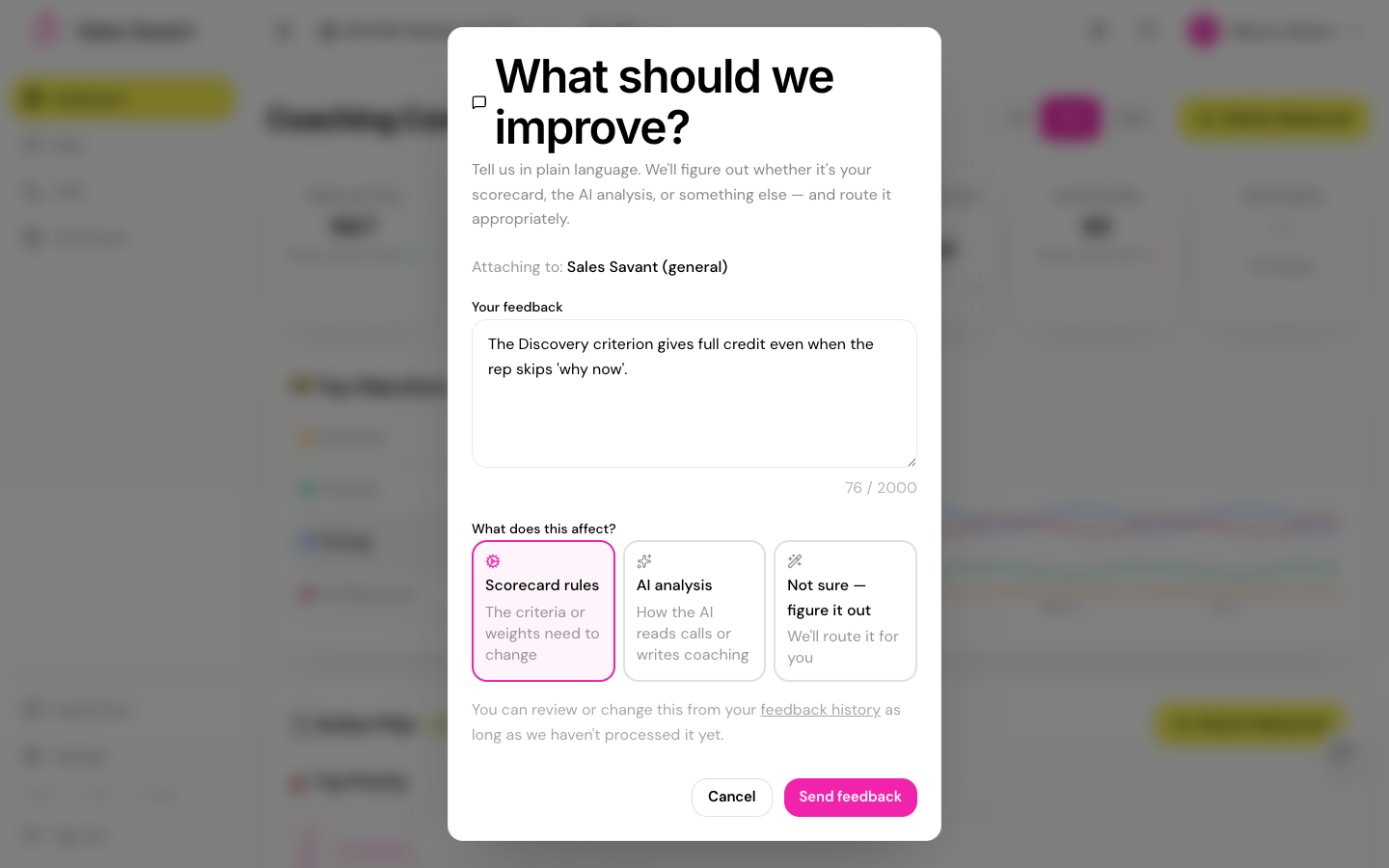
Your feedback (the description)
Plain language. Up to 2000 characters. The more concrete you are about a specific case ("on Acme's call last Tuesday, the rep said X but got full credit"), the more actionable the result.
What does this affect? (the routing chip)
Three choices, with smart defaults per surface:
- Scorecard rules — the criteria, weights, or auto-fail conditions on a scorecard. Choose this when you're saying "the rule is wrong" rather than "the AI's interpretation is wrong."
- AI analysis — how the AI reads calls or writes coaching. Choose this when the scorecard is fine but the AI's reasoning isn't.
- Not sure — the default when you've opened the form from the floating button. We'll route it. You don't have to know.
The floating button defaults to Not sure. Tune this scorecard defaults to Scorecard rules. You can change either before submitting.
What happens after you submit
You'll see a confirmation toast. Behind the scenes:
- Scorecard-rules feedback gets queued against the named scorecard. The next time the scorecard's AI revision suggestions run, your comment is treated as additional context, and you'll see proposed edits in the scorecard's Suggestions panel — accept, reject, or ignore.
- AI analysis feedback goes to our team to inform prompt tuning. We currently review this batch-wise; in a future release this will become a customer-visible queue with status updates.
- Not sure feedback gets classified for you before it lands in either of the above queues.
A few tips for high-signal feedback
- Name the criterion when you can. "Discovery > 'Asks why now'" is much easier to act on than "discovery doesn't work well."
- Quote what the rep actually said when the disagreement is about how a specific call was scored. The AI can take a verbatim quote into account; it can't reconstruct paraphrases.
- One concern per submission. It's better to send three short pieces of feedback than one long one. Each gets routed independently.
- You can submit from view-as and impersonated sessions — staff who are helping you can give feedback on your behalf too.
What this isn't (yet)
We're being transparent about what's still coming so you don't expect more than the current shape supports:
- AI analysis feedback isn't yet shown back to you with a "we applied your feedback" link. It feeds an internal prompt-tuning queue today; a future release will make this visible end-to-end.
- The floating button submits as "Not sure" by default, and we haven't yet shipped the auto-classifier that decides between scorecard and prompt automatically. Until then, picking the routing yourself if you can helps us be faster.
- Coaching cards still use thumbs up/down, not the new free-text flow, on call detail pages. Both flows write to the same place, so we see them together.
- There's no history view of what you've sent. Once you submit, the feedback is with us — you won't see a list of past submissions or a status on each one.
If something here doesn't match what you see, that's a real bug — please tell us about it from the floating button.